WELCOME TO KNOWVIAME™
You're in. One step opens everything.
Your membership comes with your own seat, already waiting. Add yourself to it and everything your membership level includes opens together. Here's exactly how.
1
Open the Organization Orders Dashboard
You can go directly to the dashboard with the button below; it's where all your membership orders live.
Open Organization Orders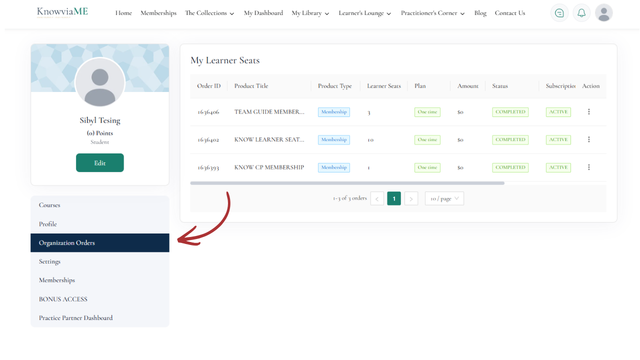
2
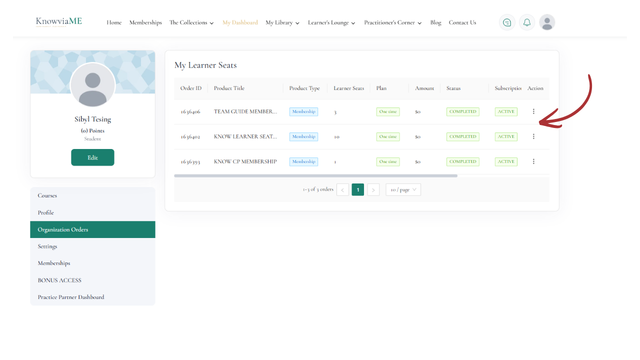
Select your membership product
From the dashboard, find the membership product you want to add seats in.
3
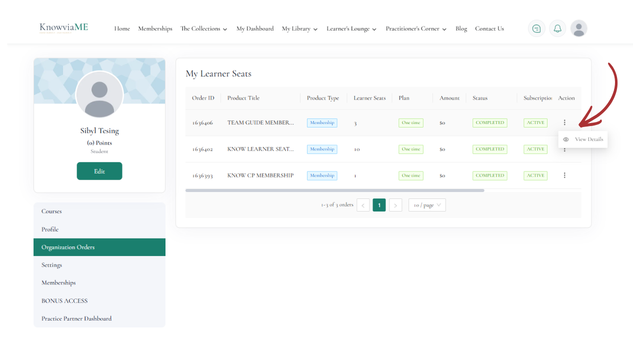
Open the order's details
On that order's line, click the three dots under Action and choose View Details.
4
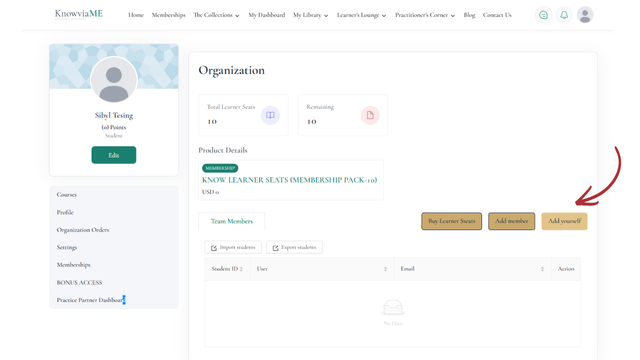
Assign your seat
Inside, click Add Yourself to take your membership seat. This same screen is where your learners get theirs too: Add Member assigns one person, Import Students bulk uploads your roster, and Buy Learner Seats adds more whenever you need them.